3. Usage Reference
As ACCS is completely integrated within ANSYS Workbench, one simply needs to run Workbench to have access to it. For step-by-step tutorials, please refer to the Workshops section.
3.1. Workflow
A typical Workbench ACCS workflow for composite structures looks as follows:
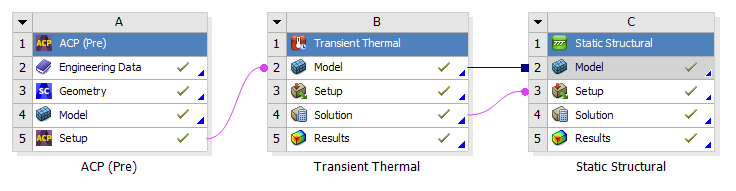
Fig. 3.1: typical cure simulation workflow for composites in Workbench.
The material properties are defined in the “Engineering Data” module. A shell model is generated in “Design Modeler” or in “SpaceClaim” or in any other CAD tool, then it is worked out in “ACP (Pre)” module to build a solid finite element model of the composite structure that will be transferred to the “Transient Thermal” module where the temperature distribution will be computed throughout the cure cycle for every element as well as the degree of cure, the state of the material, the glass transition temperature and the instantaneous heat of reaction. The temperature distribution is then transferred to the “Static Structural” module where the distortions will be computed using the previously computed temperature and the material properties.
3.2. Material Definition
The first task in the modeling of the cure process with ACCS is to correctly define the material properties. In the list of Materials (Fig. 3.2), the basic material properties that the user should start with are the Thermoset - Cure Kinetics Model [first five Properties ended with “Equation”]. The Resin properties, Total Heat of Reaction and the ACCS Common properties will be included automatically. The user can then include a diffusion limitation formulation (Proportional Diffusion Limitation or Parallel Diffusion Limitation). Now the user must choose one of the two ways to define the ply material. The first one is defining the ply material using separate fiber and matrix properties, which in this case all the properties enclosed by a black rectangle must be included (adding one will include the other relevant properties). The second way is to define the ply material using homogenized lamina properties. In this case the Isotropic or Orthotropic properties must be included (adding one will also include the other relevant properties). All the first four properties of the “ACCS-Thermoset-Thermal” list will also be included automatically. Optionally, the user may want to include visco-elastic effects. To do so, the user can include one of the available models in its Isotropic or Orthotropic formulation (in light green). Adding one will include the other relevant properties. Including the “Liquid Time Shift”, “Rubbery Time Shift” and Classy Time Shift” properties will allow to take into effect temperature and/or degree of cure time shifts.
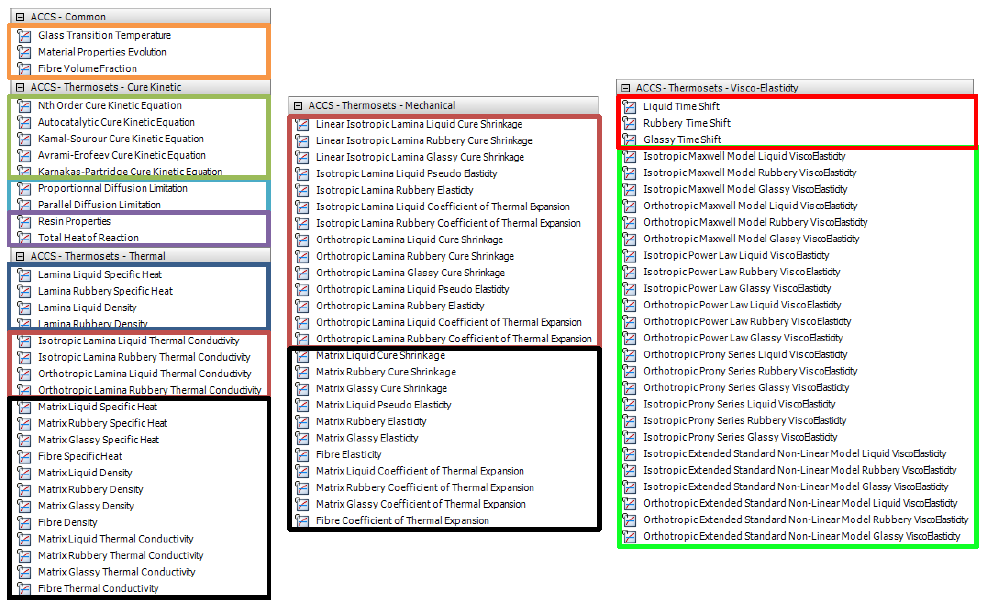
Fig. 3.2: list of material properties specific for ACCS showed in the Engineering Data
Note: The automatic inclusion of properties is only available for Engineering Data cells connected to an “ACP (Pre)” module, an ANSYS thermal module or an ANSYS structural module.
Note2: When opening in ACCS 2020R2 a project which was created with an earlier release, the material properties must be updated. Simply click on the button  .
.
3.3. Adding the Cure Simulation Equations
The ACCS solution is also integrated within Mechanical and is therefore available in the “Transient Thermal” and “Static Structural” analysis systems in the form of an additional tab in the ribbon as show in the figure below.

Fig. 3.3: ACCS features in the Mechanical menu ribbon.
Adding ACCS to the analysis invokes the ANSYS solver with chemical cure and cure shrinkage routines for materials with defined cure kinetics properties within the “Engineering Data” module. Once in Workbench Mechanical the user can initiate ACCS by clicking on the “Add Cure Simulation”  button as shown in the figures below for the “Transient Thermal” and “Static Structural” modules.
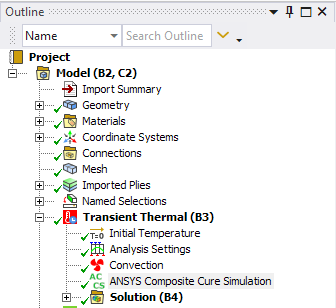
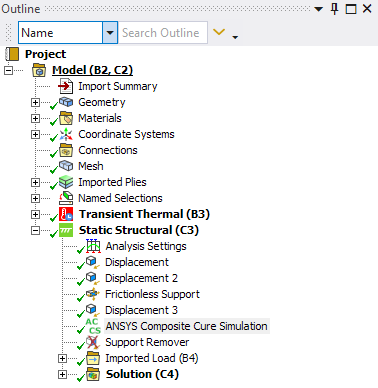
Fig. 3.4: initiating ACCS from the toolbar adds an “ANSYS Composite Cure Simulation” item to the current analysis.
3.4. Analysis Settings
When performing a Full Cure Simulation, the button “Copy Analysis Settings”  allows the user to copy relevant analysis settings between two analyses easy and fast.
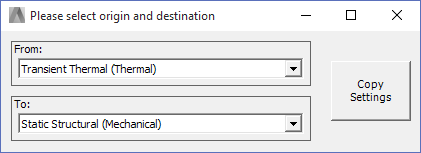
Fig. 3.5: this pop up window appears when selecting the “copy Analysis Settings” feature.
3.5. Support Remover
The lamination process usually involves the placing of composite layers over a mold. After the curing cycle is finished, the part is taken off the mold. Is in this phase of the process where the most relevant permanent deformations occur since the part is without the form constrictions. To simulate that step, ACCS has a boundary condition called “Support Remover” which delete every node that is scoped to it from it predefined displacement constraint. It is important to remark that The support remover is only needed for frictionless supports because you cannot enable/disable it per load step as other supports do.
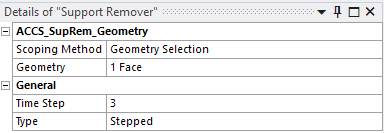
Fig. 3.6: details of the Support Remover option
3.6. Post-Processing Options
Including the ACCS feature into the analysis opens the possibility to add cure simulation specific post-processing options like Material State, Degree of Cure, Glass Transition Temperature and Cure Shrinkage in all cartesian directions. These options can be found by selecting the “Add Results” and the “Add Extra Results” buttons, as shown in the following images:
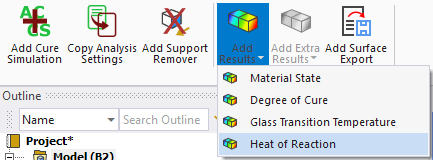
Fig. 3.7: results available during both the Thermal and Mechanical analyses.
Once the model is solved, the results can be reviewed by clicking on them. Here in the example, an exothermal reaction can be seen in the temperature profile. In many cases, the exothermie represents a risk to the process. Excessive heat can cause inhomogeneous cure (check the Degree of Cure result) and can damage the structural materials (mainly the resin itself, but also polymeric sandwich cores; or heat-sensitive fibers, such as natural fibers), as well as the auxillary materials (e.g. the vacuum bag).
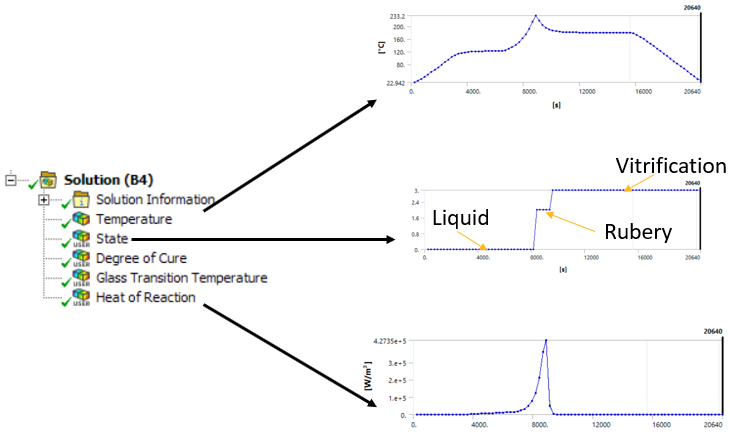
Fig. 3.8: Solution plots example. Exhoterms and material states can be post processed from thermal simulation.
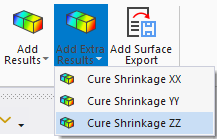
Fig. 3.9: extra results only available during the Mechanical analysis.
The icon  allows the user to export the selected compensated surfaces. The output formats are CATIA RSO format, cloud points in .CSV file and triangular mesh in ASCII .STL file. The options of the support remover are.
Output File Path: the file path where the file will be saved
Scoping Method and Geometry: the geometrical entities which will be exported
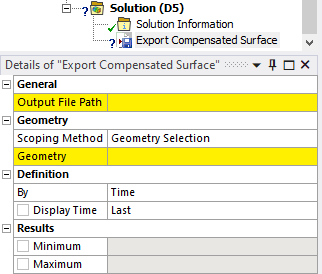
Fig. 3.10: Options of the compensated surface export item.